LED BLINK
Introduction
In this tutorial, you’ll make a real LED blink using Arduino UNO or ESP32 in under 5 minutes.
This is the classic first project that teaches how software controls real hardware using digital output pins.
What you’ll learn
- How digital output pins work
- How to safely connect an LED
- What
pinMode()anddigitalWrite()actually do - How changing delays affects hardware behavior
Components Needed
| Component | Quantity | Purpose |
|---|---|---|
| Arduino UNO or ESP32 | 1 | Runs the program |
| LED | 1 | Visual output |
| Resistor (220Ω) | 1 | Protects the LED from damage |
| Breadboard | 1 | Easy wiring without soldering |
| Jumper Wires | 3–4 | Connects everything |
Circuit & Schematic
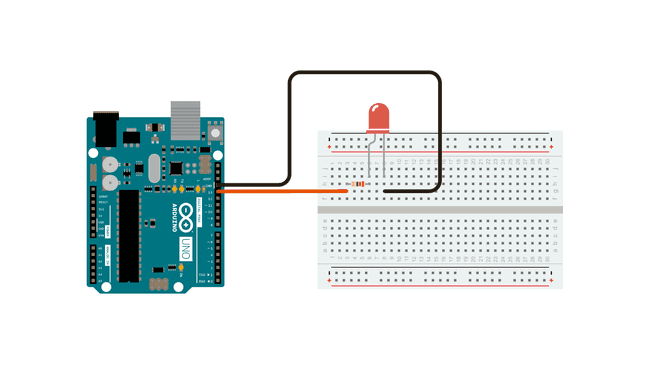
The circuit diagram shows physical connections.
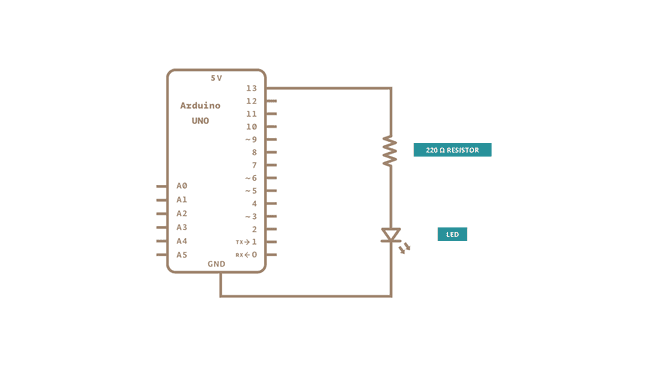
The schematic shows how electricity flows.
Wiring Instructions
- Insert the LED into the breadboard
- Connect a 220Ω resistor to the long leg (anode) of the LED
- Connect the other end of the resistor to digital pin 13
- Connect the short leg (cathode) of the LED to GND
- Plug your Arduino or ESP32 into your computer using USB
⚠️ Important
- If the LED is reversed, it won’t light up (this is safe)
- Never connect an LED directly to a pin without a resistor
Arduino Code
This program turns the LED ON for 1 second and OFF for 1 second, repeatedly.
arduino-led-blink.ino
void setup() {
  pinMode(13, OUTPUT);
}

void loop() {
  digitalWrite(13, HIGH);
  delay(1000);
  digitalWrite(13, LOW);
  delay(1000);
}
How the code works
pinMode(13, OUTPUT)tells the board that pin 13 will control an output devicedigitalWrite(13, HIGH)sends voltage to the LED and turns it ONdelay(1000)pauses the program for 1 second (1000 milliseconds)
Try This
Change the delay value in the code:
delay(200);
- What happens when you make it smaller?
- What happens when you make it larger?
This is how you start learning by experimenting.
Common Problems
- LED not blinking → Check LED direction
- Nothing happens → Verify pin number and wiring
- Board not detected → Try a different USB cable
🚀 What’s Next?
- Blink using a different pin
- Control LED using a button
- Learn smooth fading using PWM
🤖 Tip: Ask the AI assistant to modify this code for PWM or button control.
No Comments yet.